


Effective September 23, 2024, there will be changes to the Multi-Factor Authentication (MFA) process when logging into the Comcast Control Center (C3). SMS Text and Voice-based authentication methods will no longer be supported, and all partner users will be required to download the Microsoft Authenticator app to sign in.
Key Points:
- Why This Change?
SMS and Voice-based MFA methods are increasingly susceptible to security vulnerabilities such as SIM swapping, phishing, and message interception. To safeguard our network and data, we are moving to Microsoft Authenticator, which offers a more robust and secure authentication solution. - What You Need to Do
Starting September 23, 2024, SMS and Voice based MFA options will no longer be available. All users are required to transition to Microsoft Authenticator immediately. Authenticator supports Push notifications, One-Time Passcodes (OTP), and will soon introduce Phishing-resistant Passkeys, enabling a seamless and secure login experience without the need for traditional passwords. - Next Steps
To prevent any disruption to your access, please set up and begin using Microsoft Authenticator as your primary MFA method without delay. We will follow up with additional instructions as Passkeys become available, aiming for a swift and smooth rollout. (Instructions can be found below)
Your prompt action and cooperation are essential as we enhance our security posture. Thank you for your attention to this matter.
Downloading & Setting Up Microsoft Authenticator Application Instructions
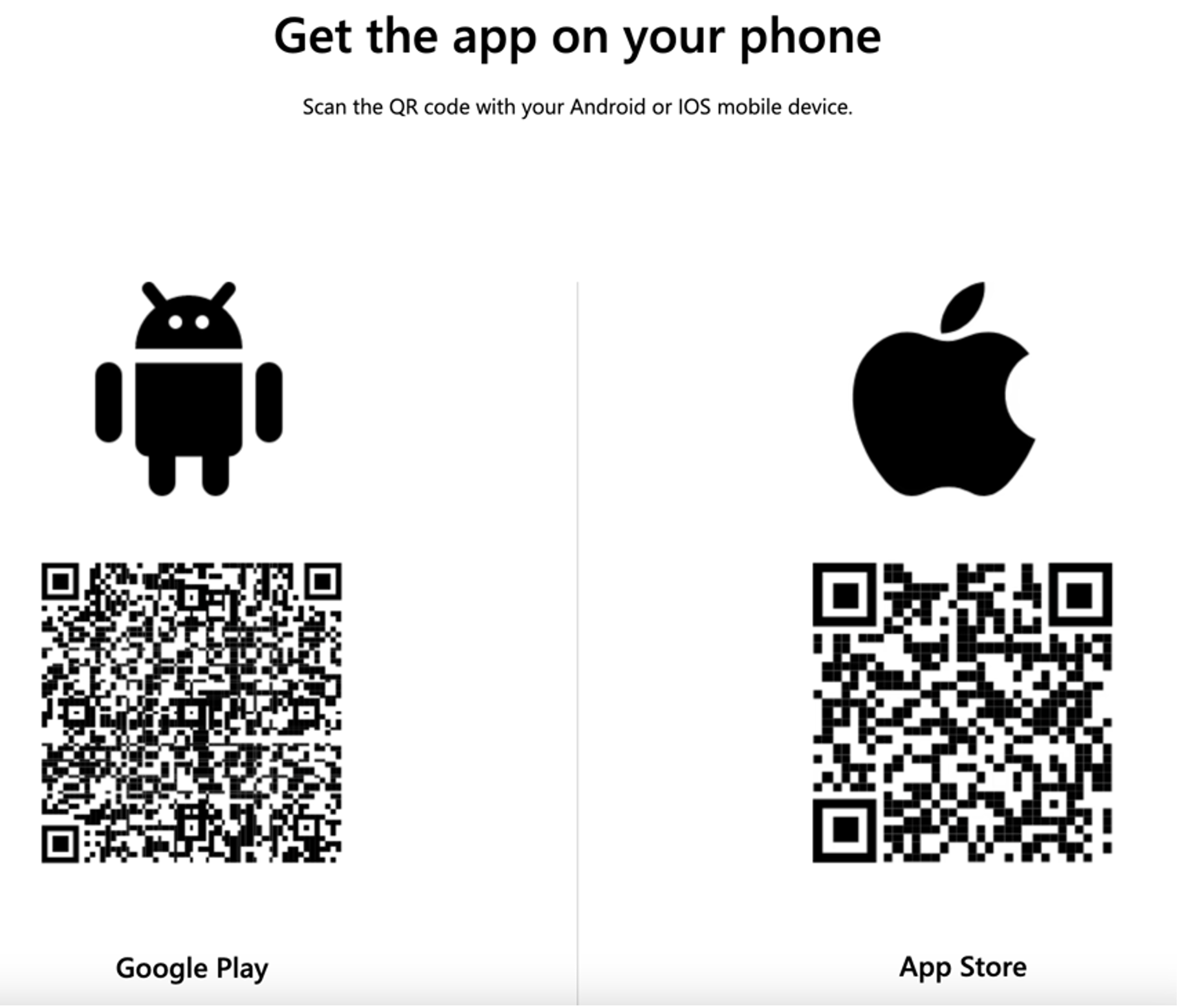
1.) Download the Microsoft Authenticator App on your Phone or Work Device using this link https://www.microsoft.com/en-us/security/mobile-authenticator-app
2.) Scan the appropriate barcode with your Mobile Device (Android or Apple)
3.) Upon downloading the app, please navigate to the MFA setup link (https://aka.ms/mfasetup)
4.) Log in with your BP ID (bp-xxxxx999@cable.comcast.com) and click Next

5.) Enter your password and click Sign In

6.) Click + Add sign-in method
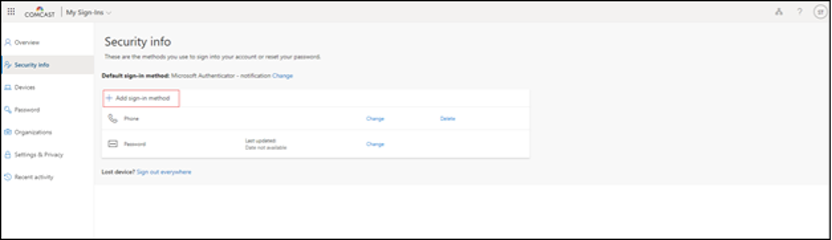
7.) Select Authenticator app from the Add a method drop-down

8.) Click Next
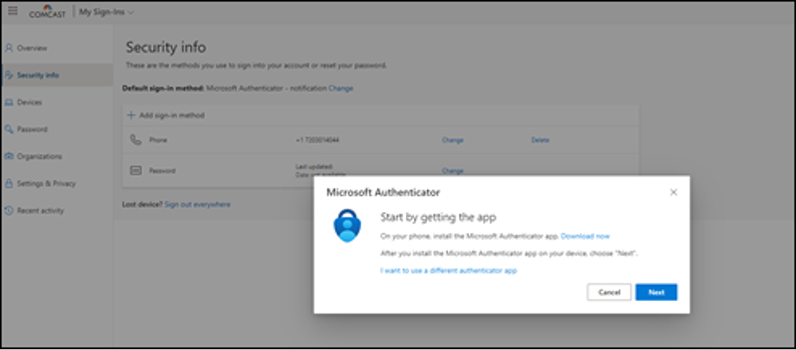
9.) Click Next
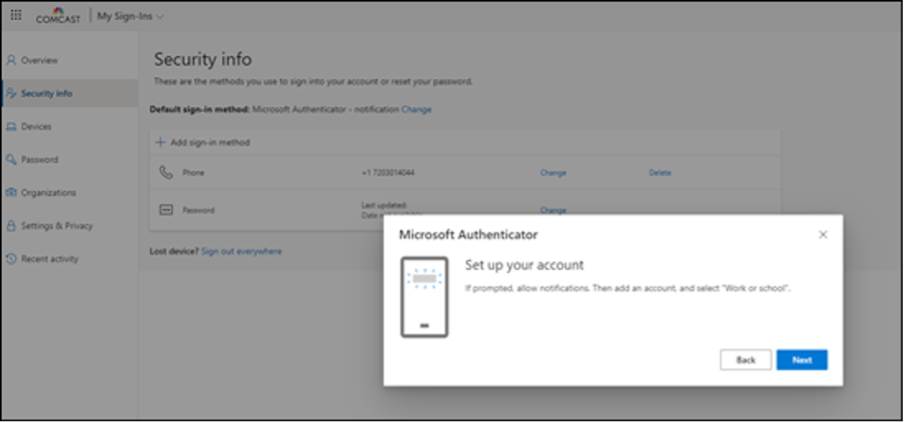
10.) Within the Microsoft Authenticator App on your Mobile Device, click Add account or the + sign

11.) Tap Work or school account, and then tap Scan QR code.

12.) Scan the QR code from the MFA setup page

13.) Finish setup and enter the number to in your Microsoft Authenticator app to finalize the setup.

14.) The sign-in method has been successful and should be added to your profile as the Microsoft Authenticator app.

Setting Microsoft Authenticator application as default sign-in method
1.) Click the MFA Setup link (https://aka.ms/mfasetup)
2.) Click the Security info tab
3.) Select Set default sign-in method
4.) From the drop-down menu select App based authentication – notifications and then click Confirm

Note: If you require assistance with getting the Microsoft Authentication app installed/setup on your mobile device or are having issues with getting logged in, please reach out to Cecil Gonzalez, James Kothenbeutel, Matt Trujillo, and Greg Trent.

