


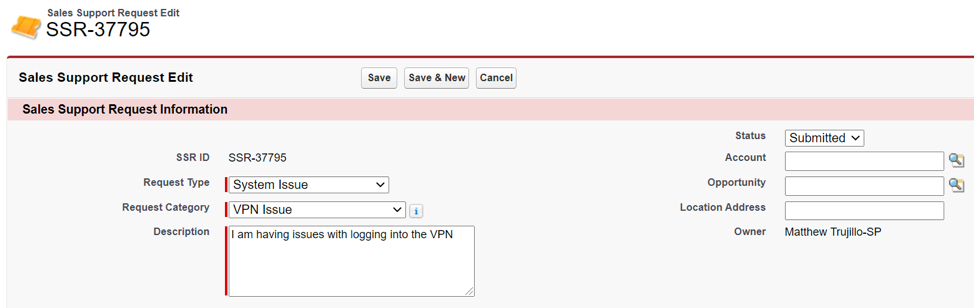
As we communicated last week, all Comcast Control Center (C3) users will need to being using VPN when logging in to C3. On the evening of June 3rd the Security team will be making a settings change that will require users to connect over VPN. Please make sure you test your VPN connection prior to that date so we can help trouble shoot any problems. If you run into issues when trying to use the VPN, please create a Sales Support Request (SSR) in C3 from your partner account. Make sure to select System Issue for the Request Type and VPN Issue for the Request Category. Remember to either manually change the Status to Submitted or click the Save and Submit button to properly submit your request.
We have two options available when connecting to our network: a web-based client, or desktop client. The desktop client is available for download and can be found at the links below. If you want to use the desktop client, we recommend that you download it now in preparation for the cutover.
Windows: https://vv01wc.vpn.comcast.net/public/share/BIGIPWinEdgeClient.zip
MacOS: https://vv01wc.vpn.comcast.net/public/share/BIGIPMacEdgeClient.zip
We recommend that Windows workstations have Windows 10 1803 or later installed for the best compatibility. MacOS devices are recommended to be running the latest point release of 10.13 High Sierra or later. Users will require administrative privileges in order to install the client on their machine. The VPN connection will employ split tunneling. Split tunneling is enabled on the connection so any traffic to Comcast systems would go over the VPN connection. Any traffic to publicly accessible endpoints or your own network would not traverse the Comcast VPN connection. You are able to verify this from the F5 client app as well as from the command line.
Connect to VPN
-
- Click Connect to initiate the VPN connection
Note: If you plan on connecting via the Web-based client you can bookmark the following URL in your web browser: https://vendor.vpn.comcast.net/

_ - Complete MFA
- The user will then be re-directed to the Microsoft sign-on page to authenticate via the Multi-Factor Authentication (MFA) process that is currently enabled in Salesforce for C3.
- The first step will be to enter your Comcast email address (ex. BP-mt123@cable.comcast.com) followed by clicking ‘Next’.
- After you click ‘Next’ you will be prompted to enter in your BP-id and password to sign in to initiate the MFA process.
- You will be challenged with the default preference set on your account similar to what you experience today with C3 and after you have successfully authenticated the connection will be initiated and you can navigate to comcast.com and resume BAU without logging in!
- Click Connect to initiate the VPN connection

Upon successful authentication, you will be presented with a landing page that will contain a few icons. Depending on your company’s access, the exact look and layout may vary slightly.

| < |

